 VoicePrivate
Buy Now
Dragon Dictate microphone not working on a Mac: the short answer
When Dragon Dictate for Mac stops hearing your microphone, check five things in order. One, the microphone button in Dragon's Status Window is green, not red (off) or blue (asleep, say "Wake up"). Two, the input level moves in System Settings, Sound, Input; if it does not, the microphone or cable is at fault, not Dragon. Three, Dragon is switched on under Privacy and Security, Microphone. Four, Manage Profiles shows your microphone under Dictation Sources with a green dot, not a warning icon. Five, your Mac has an Intel processor. Nuance discontinued Dragon for Mac on October 22, 2018, before Apple silicon Macs existed, so on an M-series Mac no setting brings the microphone back. At that point the realistic choice is Apple Dictation, which is free, or a maintained app such as VoicePrivate, which runs speech recognition on Apple silicon Macs.
Key facts
- Nuance discontinued Dragon for Mac version 6 on October 22, 2018, with no update since.
- Dragon's Status Window microphone button has 3 states: green on, red off, blue asleep.
- Dragon for Mac puts the microphone to sleep after 1 minute of silence by default.
- VoicePrivate General costs $84 a year and needs an Apple silicon Mac on macOS 13 or later.
- Facts checked in November 2026 against Nuance's Dragon for Mac 6 help and the VoicePrivate app.
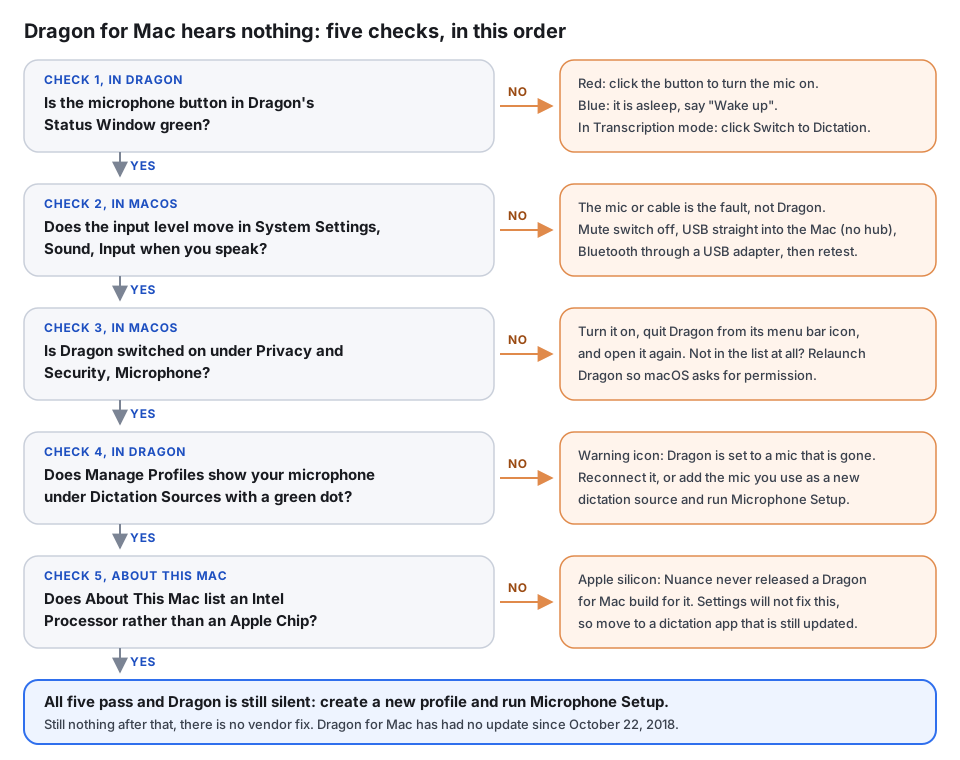
Why the Dragon Dictate for Mac microphone stops working
A Dragon Dictate for Mac microphone that hears nothing almost always has one of three causes, and VoicePrivate's guide sorts the checks by them. The first is Dragon's own state: the microphone is switched off, asleep, or Dragon is in a mode where it does not listen for dictation. The second is the Mac: the microphone is muted, unplugged, routed through a hub, or macOS has not given Dragon permission to use it. The third is age. Dragon for Mac, sold as Dragon Dictate and later as Dragon Professional Individual for Mac, reached its last version, 6, and Nuance stopped updating it on October 22, 2018. Every macOS release and every Mac chip since then arrived after the last update.
The first two causes have fixes. The third sometimes does not, and the honest answer is to find that out in five minutes rather than an afternoon. That is why the chip check sits in the order below, before you rebuild a profile you may not be able to use.
The names cause confusion of their own. People search for Dragon Dictate, Dragon for Mac, Dragon Dictate for Mac and MacSpeech Dictate, and all four point to the same discontinued Mac line. The fuller story of what happened to it, and what the Windows Dragon products are, sits in VoicePrivate's page on Dragon Dictate for Mac after its discontinuation.
Check 1: Is Dragon's microphone button green?
Dragon for Mac can only hear audio when the microphone button in its Status Window is green, according to Nuance's Dragon for Mac 6 help. The button has three states, and each points to a different fix.
- Red: the microphone is off. Click the button to turn it on. If it will not turn green, Dragon cannot reach the microphone, so go to Check 2.
- Blue: the microphone is asleep. Say "Wake up". Nuance's help says Dragon puts the microphone to sleep after a set time with no sound, 1 minute by default, so a Dragon that stops listening after you pause to think is behaving as designed.
- Green but nothing types: check the mode. Dragon cannot hear you in Transcription mode, which is for recorded files, so click Switch to Dictation. If Dragon reacts to commands but types no text, the Status Window shows Command mode; switch back to Dictation mode.
One more Dragon state to rule out: the cursor. Nuance's help says that if your cursor is not blinking in a text field, Dragon has nowhere to type. Click into the document, or say "Activate" to bring the application to the front, then speak.
Check 2: Does the Mac itself hear the microphone?
Before you blame Dragon for Mac, test the microphone in macOS. Open System Settings, then Sound, then Input. On macOS 12 and earlier this is System Preferences, Sound, and the Input tab. Pick the microphone you dictate with and speak. The input level should move with your voice. Nuance's own help makes the same point: if the microphone does not appear in the Sound input list, it will not work in any application, Dragon included.
If the level does not move, the fault is the microphone or its connection, and Nuance lists the checks:
- Turn off any mute switch on the microphone, the headset cord or the USB adapter.
- Plug a USB microphone straight into the Mac. Nuance's help says USB hubs are not supported, and that includes the hub inside a dock or a monitor.
- For a Bluetooth microphone, confirm it is on and charged. Nuance's help says Dragon needs a USB Bluetooth adapter, because the audio quality of the Mac's built-in Bluetooth receiver is too low for it.
- Try the microphone on another computer or device. If it fails there too, the microphone is the problem.
Nuance also says older analog microphones with two 1/8 inch jacks cause more audio problems than an internal or USB microphone, and it encourages dictating with the Mac's built-in microphone where possible. If you are choosing new hardware anyway, VoicePrivate's guide to the best microphone for dictation on Mac and Windows covers headsets, handhelds and desk microphones.
Check 3: Does Dragon have microphone permission in macOS?
macOS asks before any app can use the microphone, and a Dragon for Mac install that lost that permission hears silence while every meter in Sound settings looks healthy. Open System Settings, then Privacy and Security, then Microphone. On macOS 12 and earlier the path is System Preferences, Security and Privacy, Privacy, Microphone. Find Dragon in the list and switch it on.
If Dragon is already on, switch it off and back on, then quit Dragon from its menu bar icon and open it again from the Applications folder. If Dragon is not in the list at all, relaunch it so macOS has a chance to ask for permission. A macOS update can reset these switches, which is the most common reason a Dragon microphone that worked last week hears nothing today.
If Dragon never appears in the list after several relaunches, macOS is not seeing a request from it, and no setting on your side can add it. That points to Check 5.
Check 4: Is Dragon set to the microphone you are using?
Dragon for Mac does not simply use whatever microphone macOS picks. Each Dragon profile stores one or more dictation sources, and each source is a specific microphone with its own Microphone Setup. To see which one is active, click the Dragon icon in the menu bar and choose Manage Profiles. Under Dictation Sources, the selected microphone has a green dot. A missing microphone shows a warning icon, according to Nuance's profile help.
This is the classic Dragon Dictate microphone problem: the profile was created with the built-in microphone, and you are now speaking into a USB headset, or the other way round. Fix it one of three ways:
- Reconnect the microphone the profile expects.
- Select a different dictation source in the list and click Load.
- Add the microphone you actually use as a new dictation source with the plus button, then complete Microphone Setup. Nuance says you must run Microphone Setup for every profile and every microphone, or Dragon cannot recognize your speech properly.
To make the new microphone stick, choose it in the Default menu under Dictation Sources. Nuance's help adds that re-creating a dictation source keeps your custom vocabulary and commands, and that Microphone Setup can take up to 5 minutes.
Check 5: Dragon Dictate Mac compatibility, Intel or Apple silicon
Dragon Dictate for Mac compatibility comes down to the chip. Choose Apple menu, About This Mac. A line that says Chip with an Apple M-series name means Apple silicon. A line that says Processor with an Intel name means an Intel Mac.
- Apple silicon (M1 or later): Nuance stopped updating Dragon for Mac on October 22, 2018. Apple's first M1 Macs came two years later, in November 2020, so no Dragon for Mac build was ever made for them. If an old copy opens at all, it runs through Apple's Rosetta translation layer with no vendor support behind it, and a microphone fault there has nobody to fix it.
- Intel Mac: Checks 1 to 4 are worth your time. Nuance's help for version 6 recommended OS X 10.11.6 or later, and every macOS release after 2018 arrived without a Dragon update, so the newer your macOS, the more likely a fault is in Dragon itself.
Older Dragon Dictate releases, such as version 2 or 3, are older still than version 6. On a current macOS, treat them the same way as version 6 on Apple silicon.
Dragon hears you but gets the words wrong: audio settings to check
Once Dragon for Mac hears the microphone, poor recognition is usually an audio quality problem, and Nuance's help gives a short list of Dragon audio settings to work through.
- Placement. Keep the microphone where it was when you ran Microphone Setup. A headset boom that drifted an inch changes what Dragon hears.
- Gain. Run Microphone Setup again from the Dragon menu bar icon, Improve Recognition, Microphone Setup. That resets the input level for your voice and room.
- Noise. Keep background noise low and steady. A fan or air conditioner that switches on and off is worse than a constant hum.
- Listen back. Dictate a sentence, say "Select all", then say "Play the selection". Gaps or crackling point to the microphone or its connection.
- Profile. Confirm your own profile has the check mark in the Dragon menu, then run Voice Training from Improve Recognition.
Why did my Dragon microphone suddenly stop working?
A Dragon for Mac microphone that worked yesterday and hears nothing today usually traces to one of three changes, and VoicePrivate's guide maps each to a check above. A macOS update reset Dragon's microphone permission (Check 3). New hardware, such as a dock, a monitor with a microphone, or a different headset, changed the route or put a USB hub in the path (Checks 2 and 4). Or the Mac itself changed: a replacement Mac with Apple silicon cannot run a supported Dragon for Mac at all (Check 5).
If Apple's built-in dictation is the thing that stopped, not Dragon, the causes differ. VoicePrivate's separate guide to Mac dictation not working covers Apple's Dictation settings, Voice Control and the 30 second silence rule.
When a Dragon for Mac microphone has no fix
If all five checks pass and Dragon for Mac still hears nothing after a new profile and a fresh Microphone Setup, there is no vendor fix to wait for. Nuance's end-of-life notice promised no updates after October 22, 2018 and limited telephone support to up to 90 days from activation in North America. VoicePrivate's view is that you are now choosing a tool, not fixing one. Four routes are realistic:
- Apple Dictation is free and built into macOS. Turn it on in System Settings, Keyboard, Dictation. Apple's macOS 14 guide says Apple silicon Macs process dictation on the device for supported languages, while Intel Macs send dictated speech to Apple. VoicePrivate's walkthrough of how to turn on dictation on a Mac covers the setup.
- Apple Voice Control is the free choice if you used Dragon to control the Mac by voice, not just to type. It lives under System Settings, Accessibility, Voice Control.
- VoicePrivate is a paid dictation app that runs speech recognition on the Mac itself, from $84 a year. Its Personal Dictionary can import a Dragon word list. Dragon for Mac 6 exports commands as a .commandstext file, which VoicePrivate's Switch from Dragon wizard cannot read, so you would need to recreate auto-texts and commands manually. Voice training does not transfer, and VoicePrivate does not control the desktop the way Dragon did.
- Dragon on Windows is still sold, so if you depend on Dragon's command layer, the path is a Windows PC or a Windows virtual machine.
The wider set of Mac options, Apple's and third parties', is laid out in VoicePrivate's voice to text for Mac overview.
How VoicePrivate handles the microphone on a Mac
VoicePrivate treats the microphone problems above as its own job, so a former Dragon user does not have to manage dictation sources by hand. These details come from the VoicePrivate 1.6 Mac app.
- Permission is checked at setup. The first-run setup asks for microphone access and confirms it with a real test of the microphone. If access is denied, it names the switch to turn on: System Settings, Privacy and Security, Microphone.
- One microphone picker. Settings has a Microphone menu, and VoicePrivate reads the list of microphones each time Settings opens, so a headset you plugged in since shows up without a restart.
- No per-microphone training. There is no Microphone Setup or voice training to repeat when you change microphones.
- Audio stays on the Mac. Speech is recognized on the Mac after a one-time engine download, and audio is not uploaded to a transcription service.
VoicePrivate General costs $84 a year or $9.99 a month, with a 30-day money-back guarantee on individual monthly and annual plans. There is no free trial. VoicePrivate's head to head with the old Mac product is in VoicePrivate vs Dragon for Mac.
Who VoicePrivate is not for
- Intel Mac owners. VoicePrivate needs an M1 or later Mac; on Intel, use Apple Dictation, or Dragon if Checks 1 to 4 bring it back.
- Voice control users. VoicePrivate types text and does not drive menus or windows; Apple Voice Control or Dragon on Windows does.
- A few short messages a day. Apple Dictation does that for $0; VoicePrivate starts at $84 a year.
Dragon Dictate for Mac microphone: questions
Why is my Dragon Dictate microphone not working on my Mac?
Usually one of five things: the microphone button in Dragon's Status Window is red or blue instead of green, the microphone is muted or behind a USB hub, Dragon lost microphone permission in Privacy and Security, Dragon's profile is set to a different microphone, or the Mac has Apple silicon, which Dragon for Mac never supported. Check them in that order.
Why has Dragon dictation stopped working on my Mac?
A Dragon for Mac setup that stops working is most often hit by a macOS update that reset its microphone permission, by new hardware such as a dock or headset that changed the microphone route, or by a move to an Apple silicon Mac. Nuance has not updated Dragon for Mac since October 22, 2018, so newer macOS releases can break it with no patch coming.
How do I troubleshoot the microphone on a Mac?
Open System Settings, then Sound, then Input, choose the microphone and speak. If the input level moves, the Mac hears it, and the problem is the app or its permission under Privacy and Security, Microphone. If the level does not move, check the mute switch, plug USB microphones straight into the Mac, and try the microphone on another device.
Why is my microphone suddenly not working with dictation?
The three usual causes are a macOS update that switched off an app's microphone permission, a new monitor, dock or headset that took over as the input, and a dictation app set to a microphone that is no longer connected. In Dragon for Mac, the last one shows as a warning icon next to the microphone in Manage Profiles.
Does Dragon Dictate work on Apple silicon Macs?
No supported version does. Nuance stopped updating Dragon for Mac on October 22, 2018, and Apple's first M1 Macs arrived in November 2020, so no Dragon for Mac build was made for Apple silicon. An old copy that opens there runs through Rosetta with no support.
Which microphones work with Dragon for Mac?
Nuance's help encourages the Mac's built-in microphone where possible, supports USB microphones plugged straight into the Mac but not through a hub, and requires a USB adapter for Bluetooth microphones. It warns that older analog microphones with two 1/8 inch jacks cause more audio problems.
How do you enable Dictation on a Mac without Dragon?
Open the Apple menu, choose System Settings, click Keyboard, go to Dictation and turn it on. Then click into a text field, press the Microphone key or the Dictation shortcut, and speak. Apple Dictation is free and built into macOS.
What changed
- November 2026: first published.